Start with the photo, not the sliders
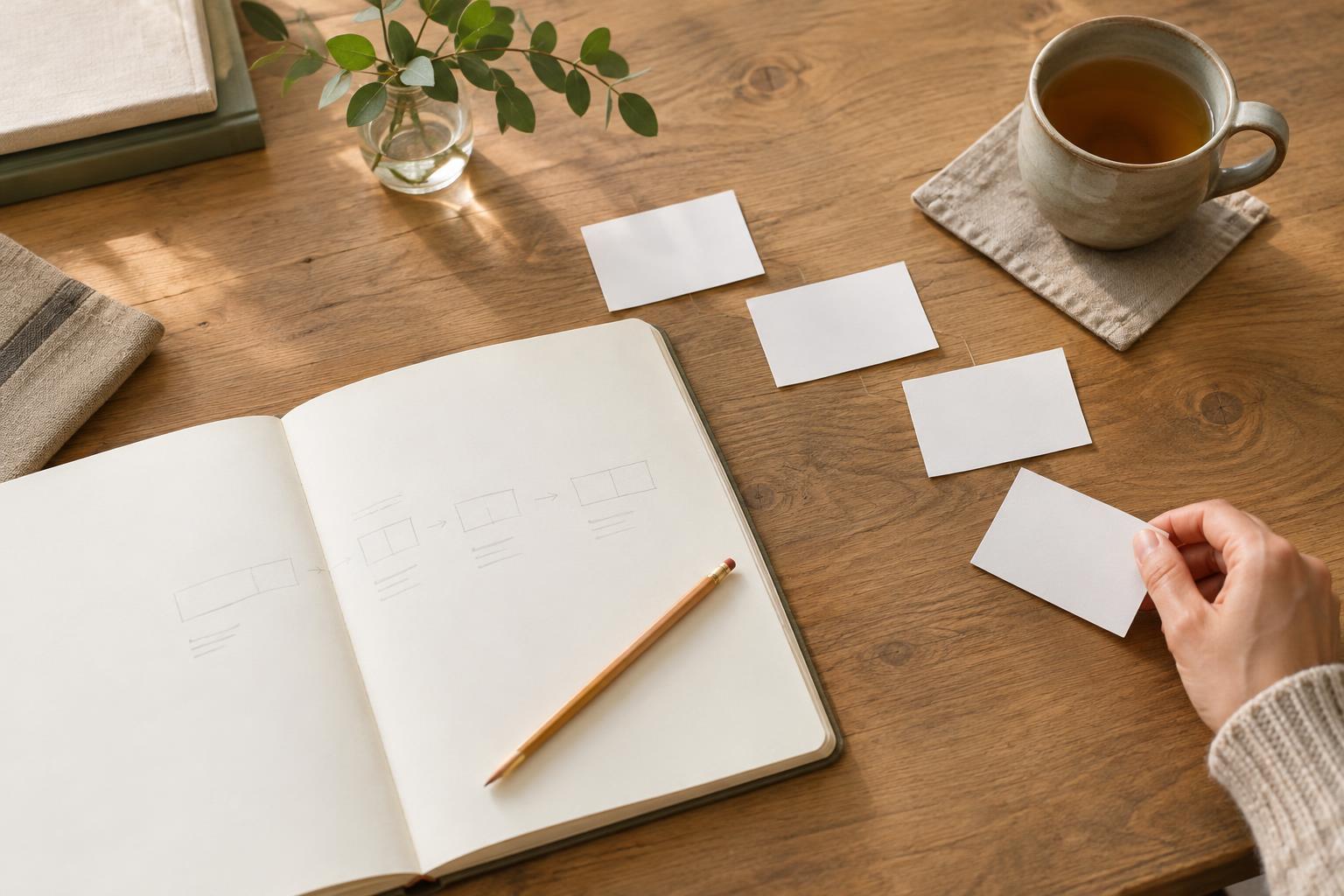
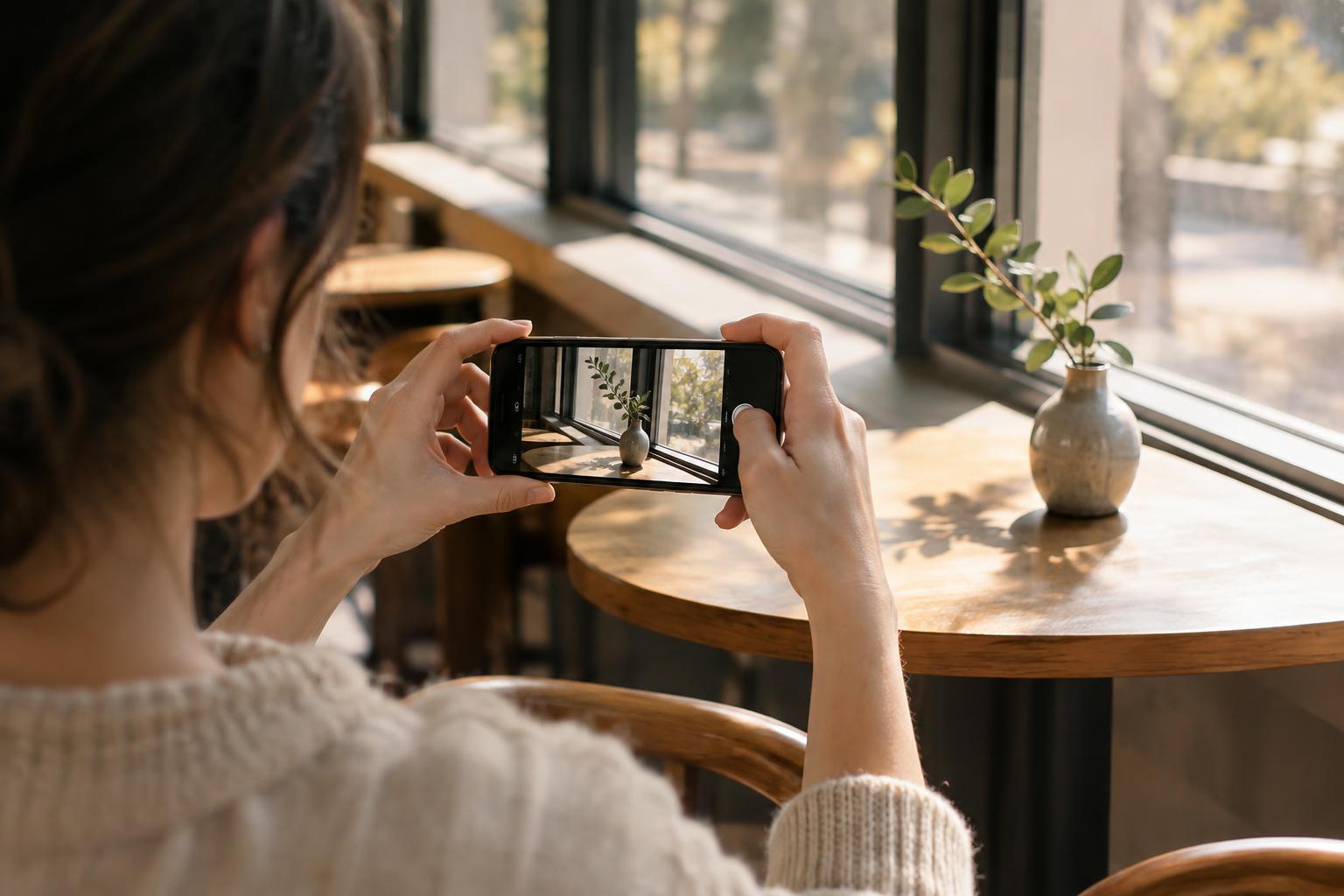
The most natural edit begins before you change a setting. Open the photo and ask what you wanted to keep about the moment: the soft light on a table, the color of a jacket, or the easy expression on a friend’s face. That gives you a reference when an adjustment starts to make the image look polished but less familiar.
Choose the strongest version if you took several similar shots. Look for a clear subject, a comfortable composition and an expression or detail you like. Editing can make a good image easier to see, but it may not rescue one that is badly blurred or missing its main subject. Save a copy before you begin if your app does not make it easy to undo changes.
Crop to remove distractions
Cropping is often the most useful first edit. Check the edges for stray objects, awkward bits of another person or empty space that pulls attention away from the subject. Remove only what you need to. A wider frame may tell more of the story, especially in photos of a room, a meal or a place you visited.
Use the straighten tool if a horizon, shelf or doorway looks unintentionally tilted. You do not have to make every line perfectly square; a slight angle can be part of a casual photo. After cropping, pause and check that people have room around their heads and that important details have not been cut off.
Adjust light gently
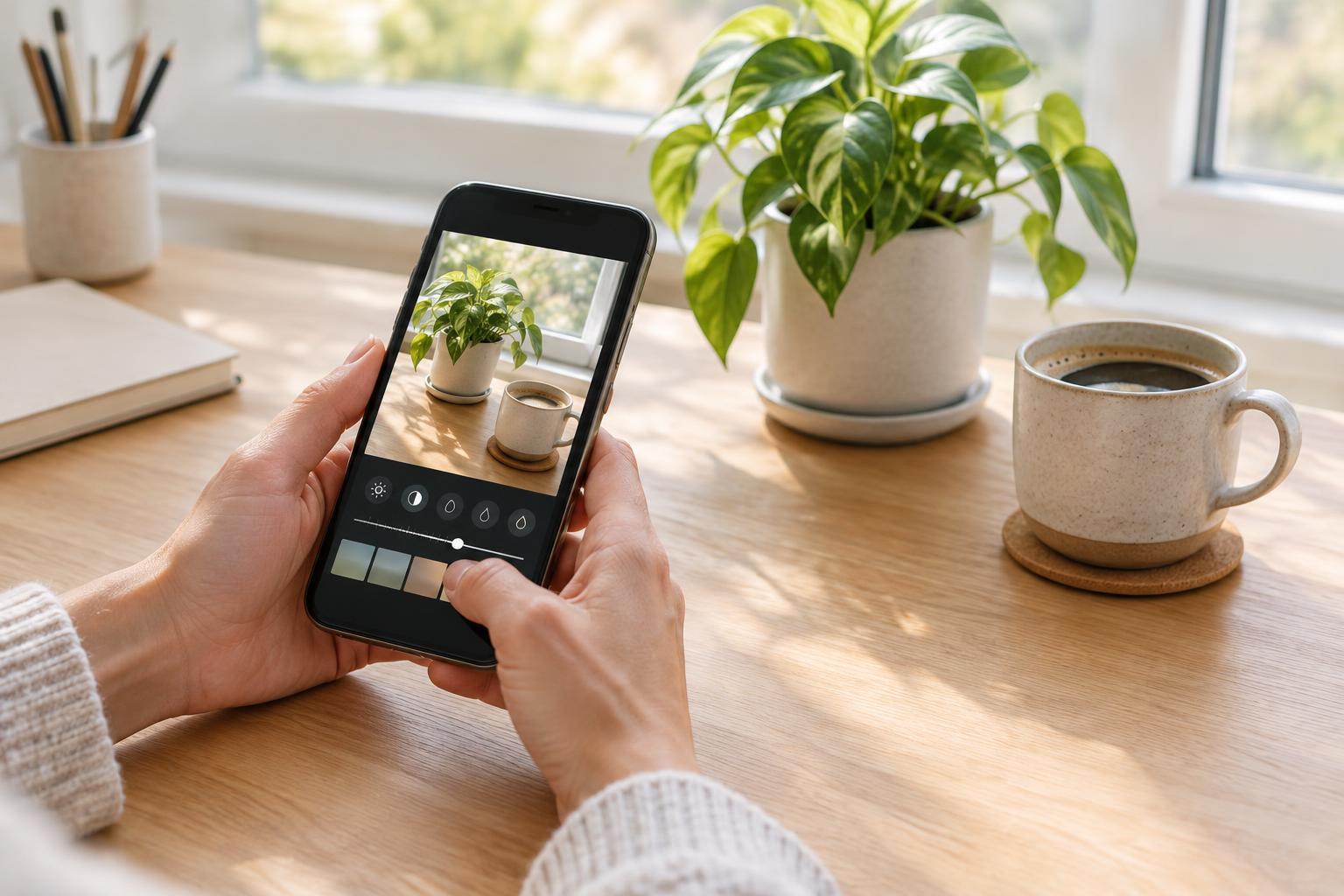
Phone cameras sometimes make a bright window look white or a face in the shade look too dark. Begin with a small exposure adjustment to set the overall brightness. Then, if your app offers them, lower highlights to bring back detail in bright areas or lift shadows to make darker areas easier to see. Make one change at a time so you can tell what each control is doing.
Keep some contrast. If every shadow becomes bright and every highlight becomes gray, the photo can start to look flat. Think about the light that was actually there: an evening scene does not need to look like midday. A useful check is to briefly compare your edit with the original. If the edited version is clearer but still has the same mood, you are probably close.
Keep color believable
Indoor bulbs, shade and sunset light can all shift the colors in a phone photo. A white-balance or warmth control lets you move the image toward cooler or warmer tones. Adjust it until familiar objects look plausible, rather than trying to make every photo perfectly neutral. Warm light from a lamp, for example, may be part of what made the scene inviting.
If colors feel dull, raise saturation or vibrance a little, then look closely at skin, food and greenery. These can reveal an edit that has gone too far. You can also reduce color slightly if the camera made a scene unusually vivid. Filters can be a convenient starting point, but lowering their strength often keeps the result closer to the original moment.
Finish with a quick reality check
Sharpening and detail controls can help a slightly soft image, but too much can create rough edges and emphasize noise in darker areas. Be especially gentle with portraits. If your app offers selective edits, consider using them to brighten the subject a touch instead of changing the entire photo. Small, targeted adjustments often look less obvious.
Before saving, step away for a minute or view the photo at normal screen size. Look for overly bright faces, strange color, heavy shadows or details that seem unnaturally crisp. Toggle between the original and edited versions and ask whether the edit helps someone notice what mattered to you. Once it does, stop. A natural-looking photo does not have to be flawless; it just has to feel like the moment you wanted to remember.